Print Labels
Ragpiq Link, paired with Brother QL Series printers, supports bulk label printing for tagging items quickly and accurately.
Supported Brother QL Printers
Our app supports all QL models capable of adhesive label printing: QL-700, QL-800, QL-810W, QL-820NWB, QL-1100, QL-1110NWB, among others.

Brother QL-700 Label Printer
Fast, budget-friendly

Brother QL-810W Label Printer
Wireless option

Brother QL-820NWB Label Printer
High-speed networkable
Label Sizes & Ordering
Currently, we support only 29 mm × 90 mm standard address labels. You can purchase these compatible labels on platforms like Amazon or eBay. We're expanding customization options. If you'd like other sizes or formats, let us know via our feature request form.
What’s Printed on Each Label
- LOGO - Hard-coded “RAGPIQ” (custom logo support coming soon)
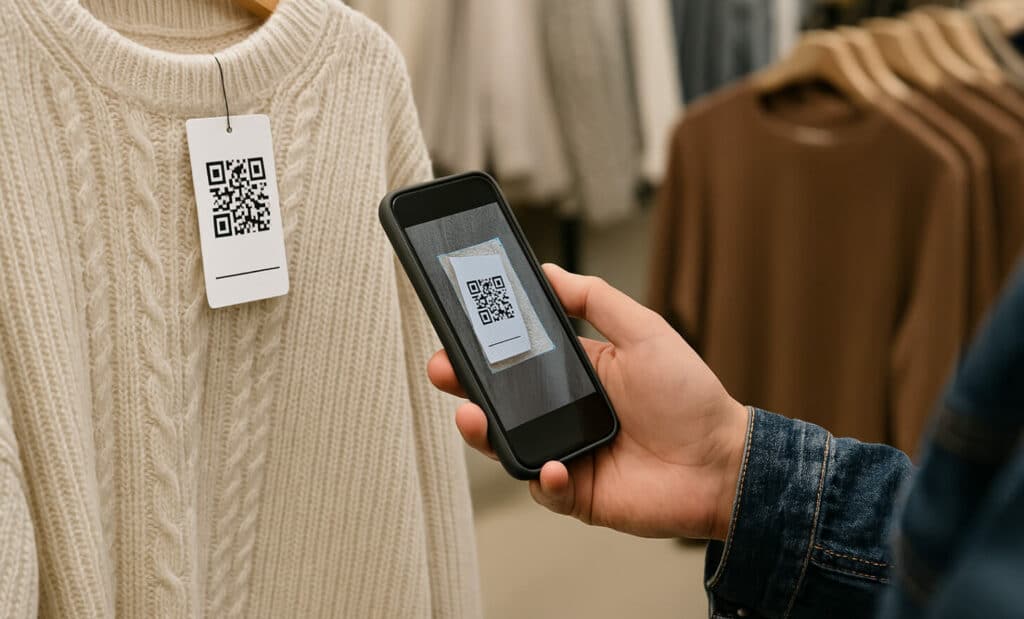
- QR CODE - Links to your Ragpiq listing and other marketplace versions
- CREATION DATE - Quick reference for when the listing was created
- PDF 417 BARCODE - Supports fast scanning in our native app
How to Print Labels
1. Set Up Your Printer
- Launch Ragpiq Link and log in with your reseller account.
- Turn on the app and connect your Brother QL printer.
- Wait for a pop-up confirming successful connection.
Windows Driver Troubles
If you see a "Windows Driver Update" notification instead of successful connection, your system has installed an incompatible driver. To fix it: use Zadig to switch to the correct driver type (libusbK)
Zadig - USB driver installation made easy
How to Fix (Windows with Zadig):
- Download and run Zadig (no install needed).
- In Zadig, click Options → List All Devices.
- Select your Brother device. Under “Driver”, choose libusbK.
- Click Install or Replace Driver. A “SUCCESS” message confirms it's done
2. Automatic Label Printing
Once your printer is connected, any upload via Link or desktop auto-generates a label in real-time.
3. Manual Printing Options
Via Mobile App: Swipe left on a listing in your Wardrobe and tap the printer icon to print instantly.
Via Desktop: In your business dashboard under “My Inventory”, right-click any listing and select Print Label (ensure Link is active).
Tip for Delicate Items
Use a sturdy price tag card behind your adhesive labels to protect delicate materials. These are ideal when attaching via a label gun or string:
- Plastic sign clips/cards compatible with clothing tags: Plastic Merchandise Sign Holder Clips (20-pack, clear, rotatable).